5.2.22. JupyterHub - Data Science IDE¶
- Port:
JUPYTERHUB_PORT(default 63094 withBASE_PORT=63000) - Category:
apps - Primary dependencies: PostgreSQL, Redis, LiteLLM (gateway to Ollama and cloud LLMs), Weaviate, Neo4j, MinIO, Iceberg REST and Spark. §15 lists the full upstream set.
1. Overview¶
JupyterHub provides a JupyterLab server pre-configured for Atlas's declared notebook integrations. Data scientists and AI engineers use it to experiment with LLM, RAG, lakehouse and ML workloads against the running stack.
It is one shared, token-protected JupyterLab server, not a multi-user JupyterHub. §9.2 explains this limit.
2. Quick Start¶
2.1. Access JupyterHub¶
JUPYTERHUB_SOURCE defaults to container. The gen-ai-rag and gen-ai-creative tracks do not include JupyterHub and set it to disabled.
# Start the stack
./start.sh

# Open http://localhost:${JUPYTERHUB_PORT} (default 63094)
The login page asks for the Jupyter token. §4.2 shows how to read it.
2.2. Disable JupyterHub¶
# Temporarily disable
./start.sh --jupyterhub-source disabled

# Permanently disable (edit .env)
JUPYTERHUB_SOURCE=disabled
3. Features¶
- Pre-installed AI Libraries: OpenAI SDK (pointed at LiteLLM), LangChain, LlamaIndex, Transformers, Chonkie, Ragas
- Database Clients: Weaviate, Neo4j, PostgreSQL, Redis, Supabase
- Lakehouse Clients: PySpark Connect,
boto3,s3fs,pyiceberg,pyarrow, andduckdbfor MinIO + Iceberg REST workflows - Financial Research Kit: OpenBB + CCXT libraries and a guarded paper-portfolio notebook for read-only market research
- Sample Notebooks: 16 ready-to-use notebooks (00-15) demonstrating service integration
- Persistent Storage: Your work is saved in the
jupyterhub-datavolume (§7) - Environment Variables: Auto-configured connections for the integrations declared in
services/jupyterhub/service.yml; optional endpoints, includingMCP_SERVERS_URL, remain empty when their source is disabled - Multi-kernel runtime: Python 3 (default), R, Julia 1.12, Scala 2.13, and Scala 3. Pick one from JupyterLab's launcher or VS Code's kernel picker. See §11.
- VS Code-ready: configured for remote-Jupyter access out of the box. Open local
.ipynbfiles in VS Code and run them on this container as the kernel. See §10.
4. Configuration¶
4.1. Environment Variables (.env)¶
JUPYTERHUB_SOURCE=container     # Options: container, disabled
# Maintained quay.io home of the Jupyter Docker Stacks, pinned to a reviewed release digest.
JUPYTERHUB_IMAGE=quay.io/jupyter/datascience-notebook:2026-08-24@sha256:e5029672ab8a861345f117dc466a4dab91ad7c299f3c7c853b9b193860b16aaf
JUPYTERHUB_PORT=63094
JUPYTERHUB_TOKEN=               # Optional: authentication token
BACKEND_NOTEBOOK_API_TOKEN=     # Auto-generated; scoped Backend bearer
DOCLING_API_TOKEN=              # Auto-generated Docling bearer; server-side only
PARAKEET_API_TOKEN=             # Auto-generated Parakeet bearer; server-side only
The base image is pinned by digest, and a base change requires a reviewed pin update. build/Dockerfile also installs current system-package updates. Rebuilds can therefore produce different final images.
4.2. Authentication¶
- No token set: Auto-generated token shown in logs
- Custom token: Set
JUPYTERHUB_TOKENin.env - View token:
docker logs ${PROJECT_NAME}-jupyterhub 2>&1 | grep token=
BACKEND_NOTEBOOK_API_TOKEN is not the Jupyter login token. It lets the Chonkie and Ragas notebooks call the Backend's stateless /api/chunk and /api/rag/evaluate. It grants no memory, research, media, storage, workflow, job or ingestion route (see services/backend/README.md). Do not print it or keep it in notebook output.
JupyterHub holds direct database and service credentials. Treat it as an operator-trusted workspace, not a multi-tenant sandbox. Atlas does not inject the Supabase service-role key.
Direct notebook calls to Docling and Atlas-managed Parakeet must send the matching bearer token from the server-side environment, for example headers={"Authorization": f"Bearer {os.environ['DOCLING_API_TOKEN']}"}. The environment-check notebook only checks that the tokens are set. Notebooks must not print these tokens or keep them in cell output. Speaches and whisper.cpp do not consume PARAKEET_API_TOKEN.
5. Sample Notebooks¶
The notebooks read MinIO bucket names from the MINIO_BUCKET_* variables (MINIO_BUCKET_SPARK_HISTORY, MINIO_BUCKET_ICEBERG_LANDING, …) and fall back to the default names. A renamed bucket needs no notebook edit.
| Notebook | Description |
|---|---|
00_environment_check.ipynb |
Inspect configured core integrations and probe connectivity without printing credential-bearing URLs. Timeouts cover HTTP/Redis operations and PostgreSQL/Neo4j connections. |
01_litellm_basics.ipynb |
Chat, streaming and embeddings through the LiteLLM gateway, using LITELLM_DEFAULT_MODEL / LITELLM_EMBEDDING_MODEL. |
02_langchain_rag.ipynb |
RAG pipeline with Weaviate. With Weaviate disabled it says so and skips the Weaviate cells. |
03_neo4j_graphs.ipynb |
Knowledge graph queries |
04_supabase_data.ipynb |
Database and storage operations |
05_comfyui_images.ipynb |
AI image generation |
06_n8n_workflows.ipynb |
Workflow automation |
07_ray_cluster.ipynb |
Distributed compute on the Ray cluster. Currently fails at ray.init(): the kernel runs Python 3.13 and the Ray image 3.10 (see the Ray README, §6). |
08_scala_basics.ipynb |
Scala 3 syntax, import $ivy dependency loading, calling LiteLLM from Scala, Scala-3 enums + extension methods. Opens on the scala3 kernel. |
09_spark_connect.ipynb |
Distributed Spark via the spark-connect sidecar (DataFrame/SQL + an s3a MinIO round-trip). Requires SPARK_SOURCE != disabled. |
10_spark_scala.ipynb |
The Scala counterpart to 09 — Spark Connect from the Scala 2.13 kernel, including the same DataFrame, SQL, and MinIO round-trip checks. |
11_financial_research_kit.ipynb |
Read-only OpenBB + CCXT market research, paper portfolio analytics, optional MinIO datasets, MLflow paper-run metrics, and LiteLLM summaries. No live trading. |
12_iceberg_advanced_sql.ipynb |
Spark Connect advanced Iceberg smoke: MERGE INTO, VERSION AS OF, branch/WAP, schema evolution, nested JSON, Structured Streaming, and table maintenance. |
13_chonkie_chunking.ipynb |
Compare Chonkie token, recursive, and optional semantic chunking, then call the Backend /api/chunk runtime endpoint. |
14_ragas_evaluation.ipynb |
Evaluate RAG answers with Ragas metrics and the Backend /api/rag/evaluate runtime endpoint. |
15_mcp_clients.ipynb |
Discovers and invokes Curated MCP tools through FastMCP 3, exercises error handling, and prototypes an in-process tool. The bootstrapper injects MCP_SERVERS_URL only when MCP_SERVERS_SOURCE=container and leaves it empty when the curated package is disabled. |
Notebook 00 sets HTTP and Redis timeouts and PostgreSQL/Neo4j connection timeouts. These do not impose a deadline on the whole notebook.
Ragas notebook 14 requires RUN_RAGAS_LIVE=1 for local evaluation or RUN_BACKEND_RAGAS_LIVE=1 for Backend evaluation. Both paths can consume tokens.
The repository gate keeps this inventory in sync with the image welcome page and the environment-check notebook. It compiles every Python code cell and checks that each direct third-party import is declared in the image requirements. Service-dependent execution remains an explicit live smoke test.
6. Service Integration Examples¶
Notebooks reach LLMs only through LiteLLM's OpenAI-compatible API, never Ollama directly. startup.sh writes OPENAI_API_BASE and OPENAI_API_KEY to /home/jovyan/work/.env. They are not in the process environment, so call load_dotenv() before os.getenv.
Other clients read injected process variables, so no credentials need hand-assembly. A variable is empty when its service is disabled.
| Client | Variables |
|---|---|
| LiteLLM | LITELLM_BASE_URL, LITELLM_API_KEY, LITELLM_DEFAULT_MODEL, LITELLM_EMBEDDING_MODEL |
| Postgres, Redis, Supabase | DATABASE_URL (scoped notebook role), REDIS_URL (database 3), SUPABASE_URL, SUPABASE_ANON_KEY |
| Weaviate, Neo4j | WEAVIATE_URL, NEO4J_URI, NEO4J_USER, NEO4J_PASSWORD |
| Spark Connect | SPARK_REMOTE (default sc://spark-connect:15002; needs SPARK_SOURCE=container) |
| Ray | RAY_ADDRESS |
| MLflow | MLFLOW_TRACKING_URI (http://mlflow:5000) |
| Redpanda (Kafka) | SPARK_KAFKA_BOOTSTRAP_SERVERS |
MinIO, Iceberg (boto3, pyiceberg, duckdb) |
AWS_ENDPOINT_URL_S3, AWS_ACCESS_KEY_ID, AWS_SECRET_ACCESS_KEY, ICEBERG_REST_URI, ICEBERG_WAREHOUSE, PYICEBERG_CATALOG__REST__* |
| Other services | COMFYUI_BASE_URL, N8N_BASE_URL, SEARXNG_URL, BACKEND_API_URL, HERMES_ENDPOINT, LABEL_STUDIO_URL, MCP_SERVERS_URL, STT_ENDPOINT, TTS_ENDPOINT, DOCLING_ENDPOINT |
Three limits apply:
- DuckDB reads the key and region from the environment, but not the endpoint. Before
read_parquet('s3://…'), runCREATE SECRET (TYPE s3, ENDPOINT 'minio:9000', URL_STYLE 'path', USE_SSL false). Otherwise DuckDB targets AWS. - The JupyterHub MinIO account is read-only on the
lakehousebucket by design. Write tables through Spark Connect, not PyIceberg or boto3. ray.init()from the notebook kernel fails: the kernel runs Python 3.13 and the Ray image Python 3.10. Submit Ray work through the Ray Jobs REST API instead. The Ray README troubleshooting section has an example.
Docling and Parakeet calls need a bearer token (§4.2). Runnable examples are in the sample notebooks (§5): 01_litellm_basics.ipynb, 02_langchain_rag.ipynb, 03_neo4j_graphs.ipynb and 09_spark_connect.ipynb.
For the advanced Iceberg/Spark validation flow (MERGE INTO, VERSION AS OF, Structured Streaming, table maintenance), see 12_iceberg_advanced_sql.ipynb. You can also run scripts/smoke-iceberg-advanced-sql.sh spark-connect from the repository root. The Iceberg advanced smoke page has the full contract.
6.1. Connecting to the lakehouse from Python¶
The image ships the lakehouse clients boto3, s3fs, pyiceberg[s3fs], pyarrow and duckdb, pre-wired against MinIO and the Iceberg REST catalog. To confirm connectivity, load the catalog with pyiceberg.catalog.load_catalog and call list_namespaces():
import os
from pyiceberg.catalog import load_catalog

catalog = load_catalog(
    "rest",
    uri=os.environ["ICEBERG_REST_URI"],
    warehouse=os.environ["ICEBERG_WAREHOUSE"],
)
print(catalog.list_namespaces())
MinIO access goes through boto3/s3fs against AWS_ENDPOINT_URL_S3. To check from the host that the client packages import:
docker exec ${PROJECT_NAME}-jupyterhub python -c \
  "import boto3, s3fs, pyarrow, duckdb; from pyiceberg.catalog import load_catalog; print('ok')"
7. Data Persistence¶
- Work Directory:
/home/jovyan/work- Persisted injupyterhub-datavolume - Sample Notebooks:
/home/jovyan/notebooks- Read-only bind mount ofservices/jupyterhub/build/notebooks/. Each start copies any missing notebook intowork/examples/and never overwrites an existing copy. Delete a copy to get the updated version. - Shared Config:
/shared- Weaviate configuration (read-only) - Generated
.env:startup.shrewriteswork/.env(owner-only) on every start. It holds the LiteLLM key and database and MinIO secrets.
./stop.sh --cold removes jupyterhub-data and everything in work/.
8. Custom Packages¶
8.1. Temporary Installation¶
!pip install package-name
8.2. Permanent Installation¶
- Edit
services/jupyterhub/build/requirements.txt. - Run
./start.sh. It rebuilds local images whose build inputs changed.
9. Advanced Configuration¶
9.1. GPU-aware workflows¶
JupyterHub itself is configured through .env and the stack startup flow. Prefer enabling GPU-backed upstream services through their SOURCE variables, for example LLM_PROVIDER_SOURCE=ollama-container-gpu, COMFYUI_SOURCE=container-gpu, or MULTI2VEC_CLIP_SOURCE=container-gpu.
Avoid direct docker-compose.yml edits for normal operation; local compose edits are unsupported experiments and can be overwritten or invalidated by future stack changes.
9.2. Multi-user access¶
Not supported. Despite the service name, the container runs one start-notebook.sh JupyterLab server, not a JupyterHub spawner. There is no authenticator to configure, and no jupyterhub_config.py is read. The only access control is the JUPYTERHUB_TOKEN token (passed to the server as JUPYTER_TOKEN); everyone who has it shares one server and one home directory. See §17 (Capabilities & limitations) for the full limitation.
10. Connecting from VS Code (run local notebooks on this container)¶
VS Code's Jupyter extension can use this container as the remote kernel for any .ipynb you open on your laptop. Notebook cells execute inside the container — with the full ML toolchain — while editor, history, and source control stay on your local machine.
10.1. One-time setup¶
- Install Microsoft's Jupyter extension in VS Code (
ms-toolsai.jupyter). - Start the stack so this container is running:
./start.sh - Grab the token.
JUPYTERHUB_TOKENin.envis optional and empty by default (service.yml). When it is empty, Jupyter Server generates a token and prints it to the container's stdout on every restart. Use whichever applies:Treat the token like a password. It changes every restart unless you pin it in# If you set JUPYTERHUB_TOKEN in .env manually: grep '^JUPYTERHUB_TOKEN=' .env # Otherwise (default), grep the auto-generated value out of the logs: docker logs ${PROJECT_NAME}-jupyterhub 2>&1 | grep -oE 'token=[a-f0-9]+' | tail -1.env.
10.2. Connect¶
- Open any local
.ipynbin VS Code. - Click the kernel selector in the top-right of the notebook. Then choose "Select Another Kernel" → "Existing Jupyter Server" → "Enter the URL of the running Jupyter server".
- Paste one of these URLs, substituting the actual token and your actual ports. The ports below are the defaults for
BASE_PORT=63000. If you launched with--base-port, useJUPYTERHUB_PORT(direct) andKONG_HTTP_PORT(Kong) from.env. For example,--base-port 64000gives direct port64094.grep -E '^(JUPYTERHUB_PORT|KONG_HTTP_PORT)=' .envprints both.- Direct port:
http://localhost:${JUPYTERHUB_PORT}/?token=<JUPYTERHUB_TOKEN>(default63094) - Kong-aliased (after
./start.sh --setup-hosts):http://jupyter.localhost:${KONG_HTTP_PORT}/?token=<JUPYTERHUB_TOKEN>(default63000)
- Direct port:
- When VS Code prompts to remember the server, give it a name (e.g.
atlas). The server now appears in every future kernel-picker. - VS Code then asks which kernel to use on that server. Pick Python 3 (ipykernel), R, Julia 1.12, Scala 2.13, or Scala 3 depending on the notebook.
10.3. What's pre-configured on the stack side¶
The image ENTRYPOINT (build/scripts/startup.sh, set in services/jupyterhub/build/Dockerfile) runs the upstream start-notebook.sh. The compose command: (services/jupyterhub/compose.yml) adds three Jupyter Server flags for remote kernels across the Docker network:
--ServerApp.allow_origin=${JUPYTER_ALLOW_ORIGIN}: empty by default, which keeps Jupyter's same-origin check. Token-authenticated clients such as VS Code skip this check.--ServerApp.allow_remote_access=True: admits connections from the Docker bridge network.--ServerApp.disable_check_xsrf=False: keeps CSRF protection on (the Jupyter default, listed explicitly).
JUPYTERHUB_TOKEN is the access control. Do not set JUPYTER_ALLOW_ORIGIN to *. With *, a page on any other localhost port can use the browser's Jupyter cookie to open a terminal websocket. To admit one browser origin, set JUPYTER_ALLOW_ORIGIN to that exact origin in .env and restart. Jupyter compares the value as one string, so a comma-separated list matches no origin.
10.4. Notebook layout: where files live¶
- The notebook file lives on your laptop (wherever you opened it in VS Code).
- The kernel runs in the container. Anything
os.getcwd()returns is the container's filesystem, not your laptop's. - The
/home/jovyan/workdirectory is the persistent volume (jupyterhub-data). Use this if you need files (datasets, models) to survive container restarts. - To edit a notebook that lives in the container (for example, a sample), open JupyterLab at
http://localhost:${JUPYTERHUB_PORT}(default63094). You can also attach VS Code with the Dev Containers command Attach to Running Container. The remote-kernel flow above is for the inverse case: local file, remote kernel.
10.5. Troubleshooting¶
- Token rejected. Re-read
.env; check the variable hasn't been hand-rotated.docker logs ${PROJECT_NAME}-jupyterhub 2>&1 | grep -i tokenshows the value the container actually started with. - Kernel starts but cells hang. WebSocket upgrade failure — confirm the three
--ServerApp.*flags are present indocker inspect ${PROJECT_NAME}-jupyterhub --format='{{json .Config.Cmd}}'. If the compose file was edited but the container wasn't rebuilt, run./stop.sh && ./start.sh. - CORS error in VS Code's developer console. Connect with the token URL: token-authenticated requests skip the origin check. If a browser page on another origin must connect, set
JUPYTER_ALLOW_ORIGINto that one origin, not*. - "Address already in use" on 63094.
./start.sh --base-port 64000to relocate the whole stack. - Scala 2.13 / Scala 3 missing from the kernel picker. The running image predates the Almond layer in
services/jupyterhub/build/Dockerfile. Run./start.sh, which rebuilds the stale image, or rebuild only this container withdocker compose -p "$PROJECT_NAME" up jupyterhub --build --no-deps -d. Confirm viadocker exec ${PROJECT_NAME}-jupyterhub jupyter kernelspec list— bothscala213andscala3should appear alongsidepython3. See §11 for full kernel-install details. - Server connects but no kernels listed. Look at the URL VS Code stored — it must include
/?token=<value>. If you pasted the URL without the token, VS Code thinks it's connected but every kernel request 403s.Jupyter: Specify Jupyter Server for Connections→ re-enter the URL with the token suffix. - Cell output appears in the wrong notebook. VS Code occasionally caches a stale kernel binding when you switch between two notebooks on the same server. Right-click the notebook tab →
Restart Kernelresets the binding.
11. Multi-kernel runtime (Python + R + Julia + Scala)¶
This container ships five kernels:
| Kernel ID | Display name | Versions | Source |
|---|---|---|---|
python3 |
Python 3 (ipykernel) | matches the JUPYTERHUB_IMAGE (currently 3.13) |
upstream jupyter/datascience-notebook |
ir |
R | matches the R runtime in JUPYTERHUB_IMAGE |
upstream jupyter/datascience-notebook |
julia-1.12 |
Julia 1.12 | Julia 1.12.7, repository-locked packages |
installed at image build time from the checksummed official Julia release |
scala213 |
Scala 2.13 | Scala 2.13.16, Almond 0.14.5 |
installed at image build time via Coursier |
scala3 |
Scala 3 | Scala 3.4.3, Almond 0.14.5 |
installed at image build time via Coursier |
To pick a Scala kernel:
- In JupyterLab: open the launcher (
+button) and click the Scala tile. - In VS Code: kernel-picker → "Scala 2.13" or "Scala 3".
To verify the kernels are actually installed in the running container:
docker exec ${PROJECT_NAME}-jupyterhub jupyter kernelspec list
You should see python3, ir, julia-1.12, scala213, and scala3. If julia-1.11 appears instead, or either Scala kernel is absent, rebuild with the args at the top of the Dockerfile baked in:
docker compose -p "$PROJECT_NAME" up jupyterhub --build --no-deps -d
Set PROJECT_NAME in your shell to the value in .env (default atlas); without -p, Compose uses the checkout directory name and creates a second project. --no-deps replaces only the jupyterhub container. The rebuild reuses cached layers after the first run.
Smoke-test a Scala cell without opening JupyterLab — useful in CI / cold-start verification:
docker exec ${PROJECT_NAME}-jupyterhub bash -lc \
  "echo 'val x = (1 to 5).map(_ * 2).sum; println(s\"sum=\$x\")' | jupyter run --kernel=scala3 /dev/stdin"
The expected last line is sum=30. The first run for each Scala kernel resolves Almond's classpath and can take 30-60 s; subsequent runs are sub-second.
Scala/Almond versions are pinned by build args near the top of services/jupyterhub/build/Dockerfile. Edit them there and rebuild, or remove the Scala toolchain entirely.
12. Architecture¶
JupyterHub runs inside the Docker Compose network and receives environment variables for the enabled services. It reaches LLMs through the always-on LiteLLM gateway (LITELLM_BASE_URL / LITELLM_API_KEY). startup.sh also writes them as OPENAI_API_BASE / OPENAI_API_KEY to work/.env. When they are available, it connects directly to these services:
- data: Weaviate, Neo4j, PostgreSQL/Supabase, Redis, MinIO, Iceberg REST;
- compute and ML: Spark Connect, the Ray Jobs API, MLflow;
- media and workflow: ComfyUI, n8n, STT/TTS, document processing.
For the stack-wide diagram, see Platform architecture.
13. Resources¶
- Jupyter Lab Documentation
- JupyterHub Documentation
- Almond — Scala kernel for Jupyter
- VS Code Jupyter extension
- Sample notebooks:
services/jupyterhub/build/notebooks/ - Atlas Docs
14. Support¶
- Logs:
docker logs ${PROJECT_NAME}-jupyterhub - Issues: GitHub Issues
- Docs: Documentation map
15. Dependencies & Integrations¶
15.1. Current — Upstream (this service calls)¶
| Service | Category | Status |
|---|---|---|
| ray | infra | current |
| iceberg-rest | data | current |
| minio | data | current |
| neo4j | data | current |
| redis | data | current |
| redpanda | data | current |
| spark | data | current |
| supabase | data | current |
| weaviate | data | current |
| litellm | llm | current |
| comfyui | media | current |
| docling | media | current |
| searxng | media | current |
| stt-provider | media | current |
| tts-provider | media | current |
| hermes | agents | current |
| mcp-servers | agents | optional: MCP_SERVERS_SOURCE=container |
| n8n | agents | current |
| backend | apps | current |
| label-studio | apps | current |
| mlflow | apps | current |
15.2. Current — Downstream (services that call this)¶
| Service | Category |
|---|---|
| kong | infra |
15.3. Architecture diagram¶
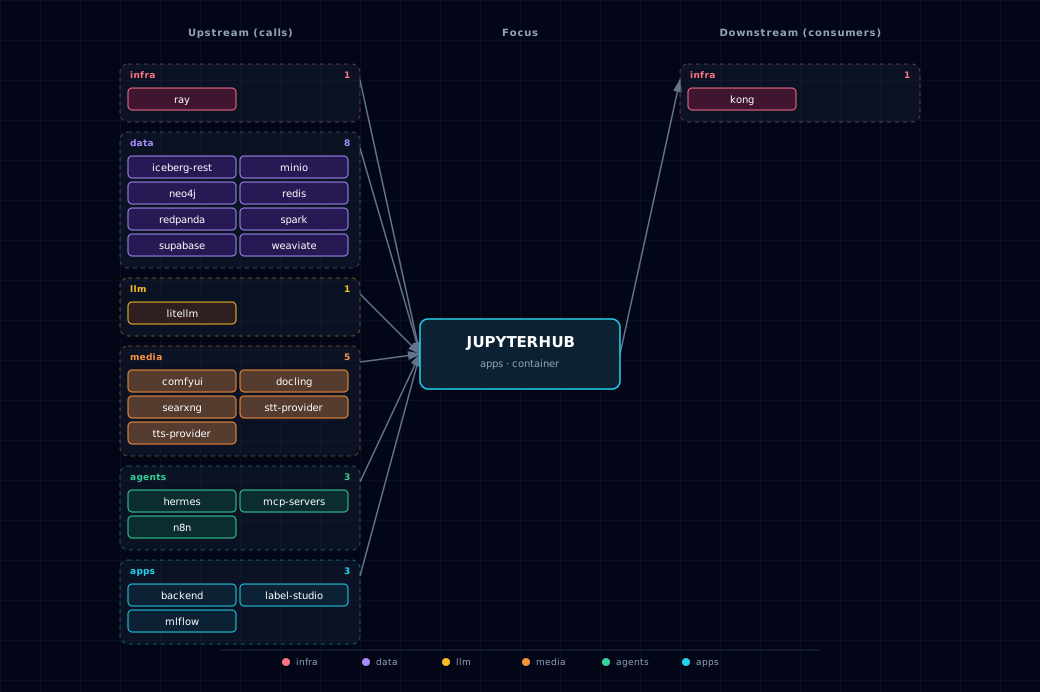
Open the full-size diagram for a full-screen view.
15.4. Future — Missing pair integrations¶
- jupyterhub ↔ local-deep-researcher — Why: long LangGraph deep-research runs should be launchable from a notebook and streamable into a dataframe. Mechanism:
DEEP_RESEARCHER_BASE_URL=http://local-deep-researcher:2024plus an SSE client snippet against LangGraph's/runs/stream. Effort: medium. Confidence: medium. - jupyterhub ↔ openclaw — Why: unattended notebook jobs (training, sweeps, embeddings) should ping Slack/Discord when they finish. Mechanism: inject
OPENCLAW_WEBHOOK_URL=http://openclaw-gateway:<port>/webhook/notifyand post JSON from a util helper. Effort: small. Confidence: medium.
15.5. Future — Candidate new services¶
No high-confidence opportunities identified.
15.6. Future — Unused features in this service¶
- Real multi-user JupyterHub (DockerSpawner + Authenticator) — Why pursue: the container is single-user
jupyter/datascience-notebookdespite the service name. A Hub withDockerSpawnerandNativeAuthenticator/OAuth would let several people share the stack. Effort: large. - Jupyter AI extension wired to LiteLLM — Why pursue:
jupyter-aiaccepts any OpenAI-compatible base URL. Pointed atLITELLM_BASE_URL, it exposes every gateway model through the%aimagic. Effort: small. - GPU enablement for the notebook container — Why pursue: the image ships PyTorch and PyG, but the manifest has no
container-gpusource. Heavy training therefore runs on CPU even on a GPU host. Effort: medium. - jupyter-server-proxy for ComfyUI/n8n — Why pursue:
jupyter-server-proxyis inrequirements.txtbut unused. Serving ComfyUI and n8n under/proxy/<service>/would embed their UIs in the lab. Effort: small. - Persistent kernel state via ipyparallel — Why pursue: long-running RAG/agent loops lose state on kernel restart; an
ipyparallelcluster (workers as sidecars) would survive restarts. Effort: medium.
16. Troubleshooting¶
16.1. Cannot Access JupyterHub¶
Check if running:
docker ps | grep jupyterhub
View logs:
docker logs ${PROJECT_NAME}-jupyterhub
16.2. Token Not Working¶
Get current token:
docker logs ${PROJECT_NAME}-jupyterhub 2>&1 | grep "token="
Set permanent token:
# In .env
JUPYTERHUB_TOKEN=my-secret-token
16.3. Port Already in Use¶
Move the whole port block: ./start.sh --base-port 64000 (JupyterHub then uses 64094), or --base-port auto. Do not edit JUPYTERHUB_PORT in .env; each start recomputes it from BASE_PORT.
16.4. Out of Memory¶
The jupyterhub container has no memory limit, so it can use all memory Docker has. Atlas has not measured a minimum. Increase Docker's memory in Docker Desktop → Settings → Resources → Memory, and check docker stats ${PROJECT_NAME}-jupyterhub while your workload runs.
17. Capabilities & limitations¶
Support tier: experimental — Capability contract declared; no cited cold-start, workflow, or upgrade qualification run yet (evidence at v0.1.0).
| Capability | Status | Verification | Notes |
|---|---|---|---|
| Integrated data and AI notebooks | supported | tested | Atlas ships a synchronized Python and Scala notebook inventory with clients and environment seams for LLM, RAG, lakehouse, ML, and media experimentation. |
| Spark Connect and lakehouse clients | partial | tested | Bundled notebooks configure Spark Connect, MinIO, and Iceberg clients, but service-dependent cells are static contracts until an operator runs the corresponding live smoke. |
| Token-authenticated notebook access | partial | tested | The direct and CORS-only jupyter.localhost paths require one Jupyter token. Browser origins are limited to Jupyter's same-origin check by default (JUPYTER_ALLOW_ORIGIN is empty); do not set it to '*'. |
| Operator-trusted credential environment | partial | documented | The server receives high-privilege database and service credentials and runs arbitrary user code. It is an engineering workspace, not a hostile multi-tenant sandbox. GRANT_SUDO is set but inert, because the container does not start as root. |
| Notebook workspace persistence | supported | tested | User work persists in jupyterhub-data and bundled notebooks mount read-only, but cold volume removal still deletes the writable workspace. |
| Curated MCP notebook endpoint | supported | tested | The bootstrapper injects MCP_SERVERS_URL only when MCP_SERVERS_SOURCE=container and leaves it empty when disabled; the bundled notebook exercises discovery, invocation, and error handling against that endpoint. The direct backend-network URL bypasses Kong authentication and is appropriate only for this operator-trusted notebook environment. |
| Multi-user JupyterHub isolation and HA | not-supported | documented | Despite the service name, Atlas runs one start-notebook JupyterLab process with one token. It has no Hub spawner, per-user servers, replicated state, or HA control plane. |